.png)
The Test History page shows all of a patient's lab test results, following a flowsheet layout. Both patient users and clinical users use this same page. Clinical users see additional actions on the page.
Access a patient's Test History
-
Patient users: the Tests tile on the homepage
-
Clinical users: Search for Patient → Tests → Test Result History
or
Account Summary → Tests → Go to Test Result Flowsheet
Administrative Group permission required to access this page
Search for patient - View test history
How to view result details
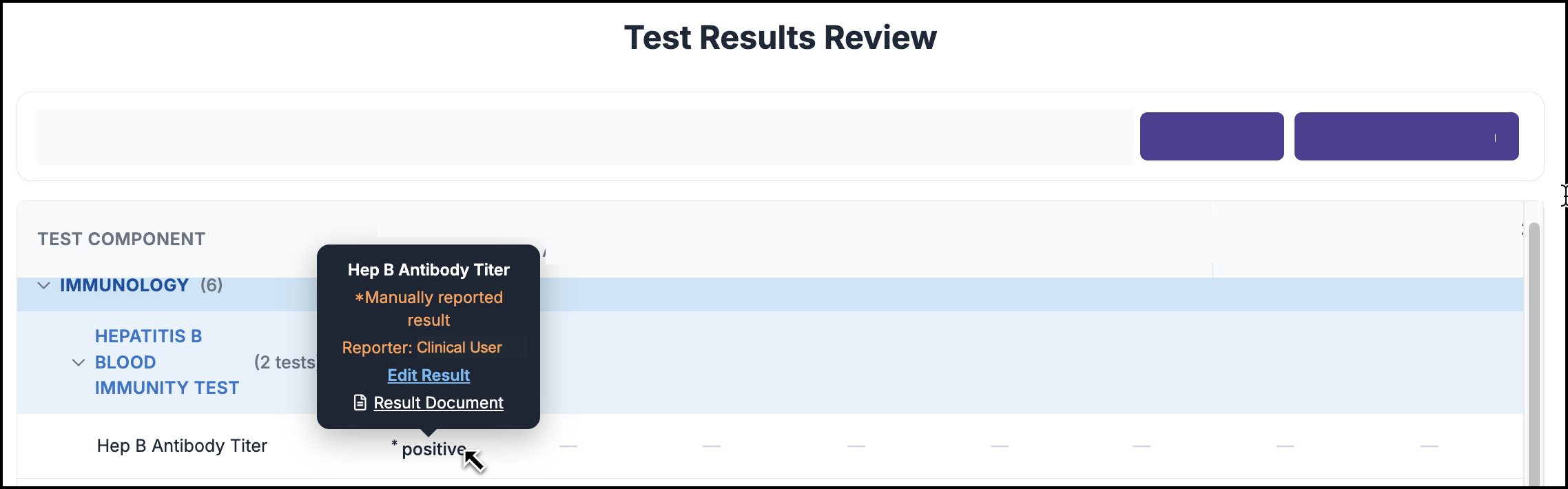
To view result details, click the result to see the Result Details tools tip. The Result Details displayed will vary based on how the test was added to the patient’s chart on TrackMy.
How results are organized
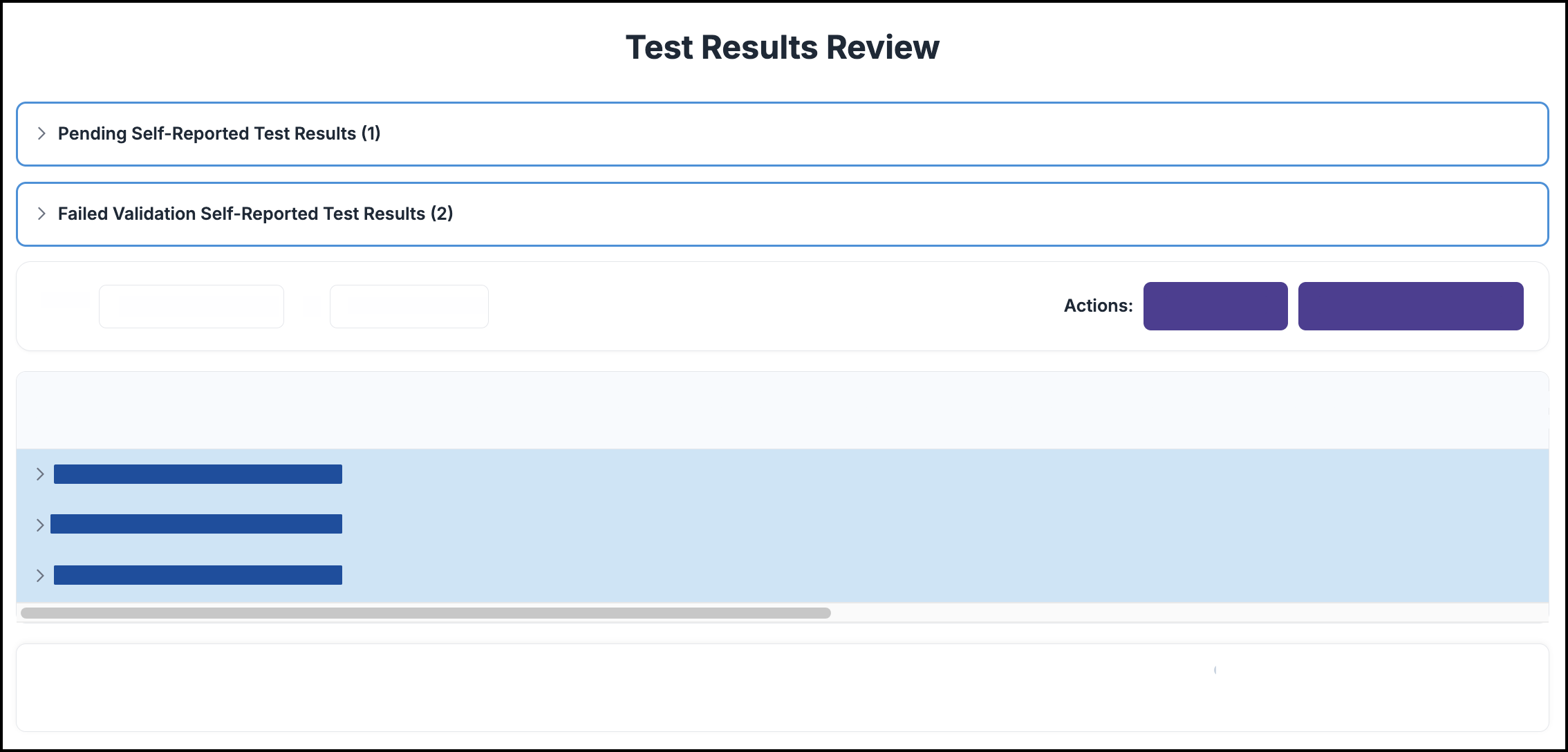
Pending / Failed Validation self-reported tests
Pending and Failed Validation self-reported tests are shown in respective sections above the flowsheet. These sections only display when the participant has a test record with the status.
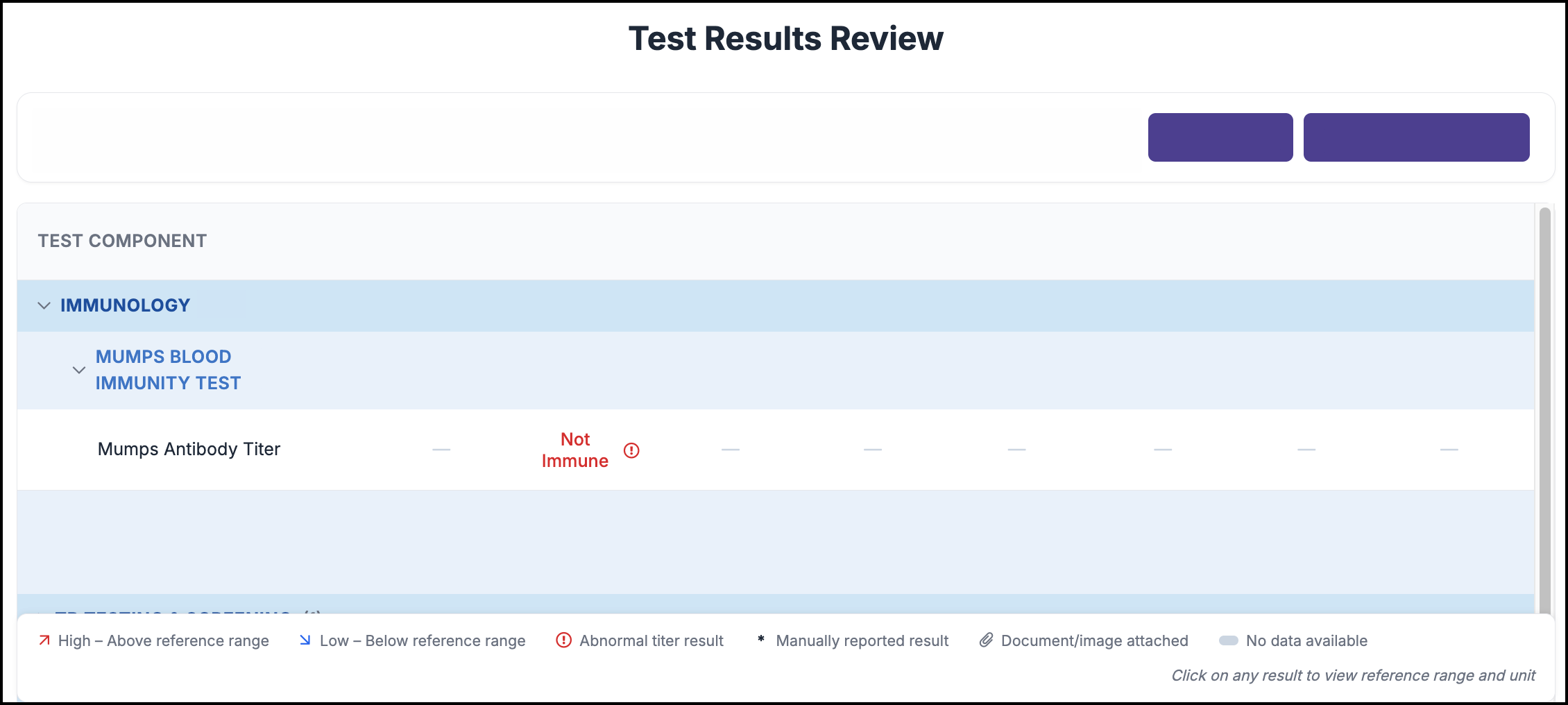
Test Results Flowsheet
Only completed results display within the flowsheet.
Results are grouped by category (such as Immunology, TB Testing & Screening, Infectious Disease, Hematology, and Chemistry), and listed alphabetically within each category. The most recent result date shows first. If more than one result exists for the same test on the same date, a small badge lets you page through them.
Click a result to see more detail, including who reported it and any attached documentation.
Reference range coloring (showing a result as above or below the expected range)
This is only available for results received electronically from a connected external lab partner that provides a reference range with the result. It does not apply to results your team documents directly in TMV or that a patient self reports.
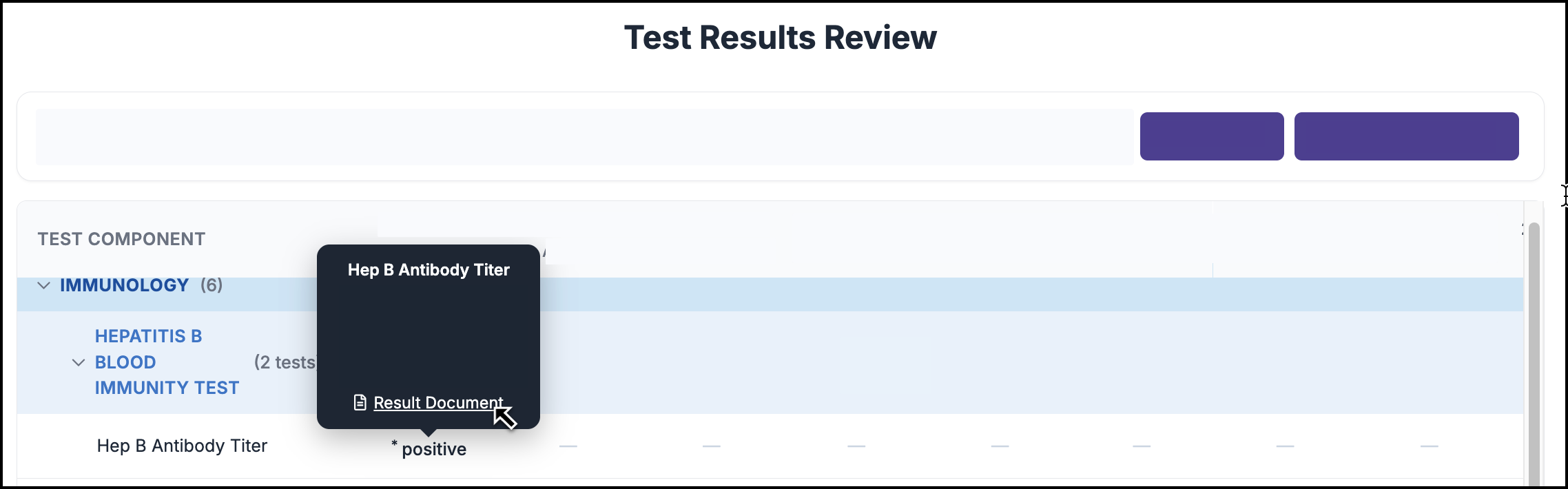
Result documents (a printable/downloadable summary of the result)
The TrackMy result documents are only made for tests documented through the Start POC Test workflow. Historic entries made by clinicians, self-reported results from participants, and results received from an external lab will not have a result document.
Clinical actions available on this page
See Submit patient lab test results for more information about these actions and how to enable them for your clinical users.
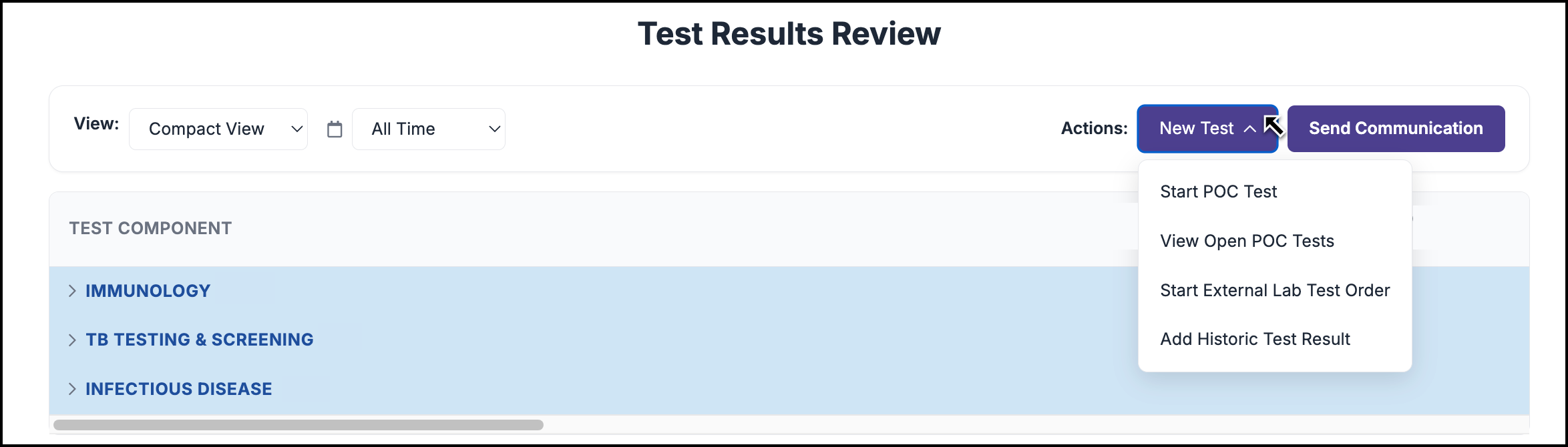
Start a POC Test
View Open POC Tests
Start External Lab Test Order
Add Historic Test Result
Delete a test
See Delete a test record for a patient
Send Communication
Clinical users can send a communication to the patient directly from this page by clicking Send Communication. This requires a Lab Test custom communication template to already be built — see Manage Custom Communications.