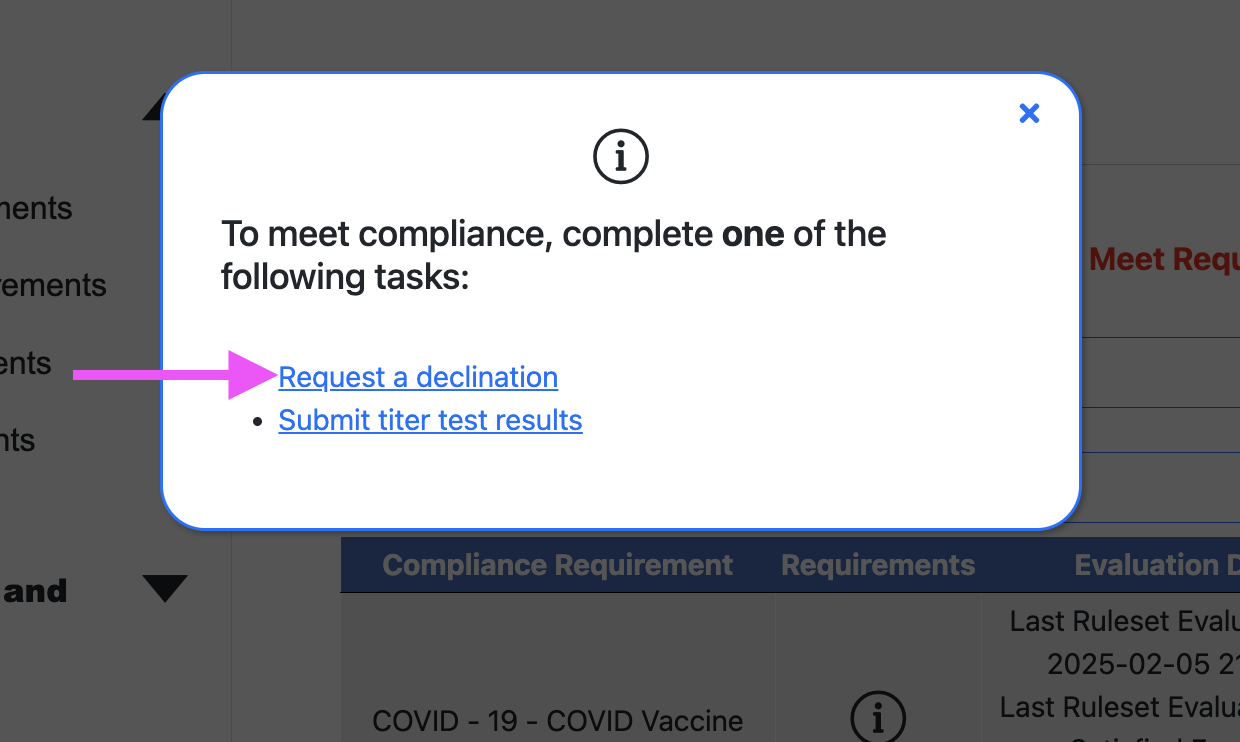
.png)
Compliance Requirements Info pop-ups are available for users to view in the Account Summary Compliance page. These are intended to help participants understand how to meet requirements for any rule in TMV. Customization options enable you to inform your participants on the best way to become compliant.
Add a description to the Compliance Requirements Info pop-up
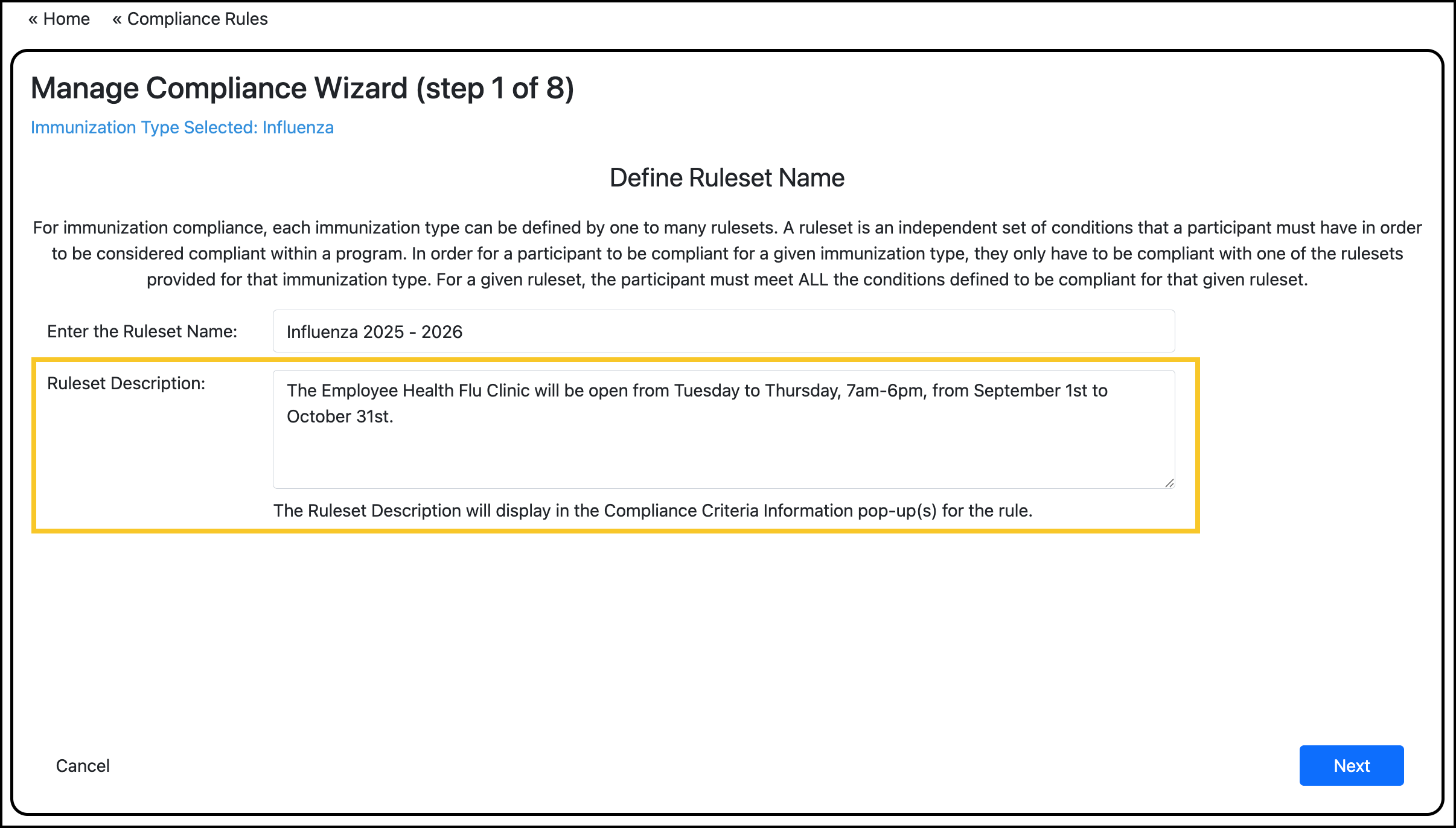
Use the ‘Ruleset Description’ field in the rule wizard to enter free text content you want to add to an info pop-up for a rule. This is optional.
To enter a description for a rule:
-
Go to Manage Compliance.
-
Click Edit for the rule.
-
For vaccine rules, navigate to the first page of the rule builder.
-
-
Enter content in the Ruleset Description field:
-
Save the rule builder.
Do not trigger compliance reevaluation for users.
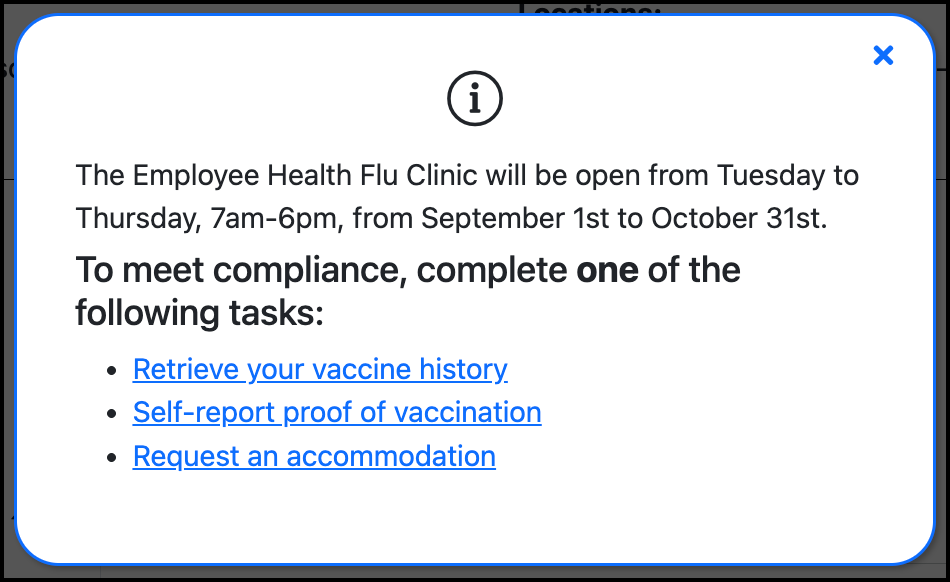
Participant’s view of the description in the info pop-up:
Hide exemption options from participants
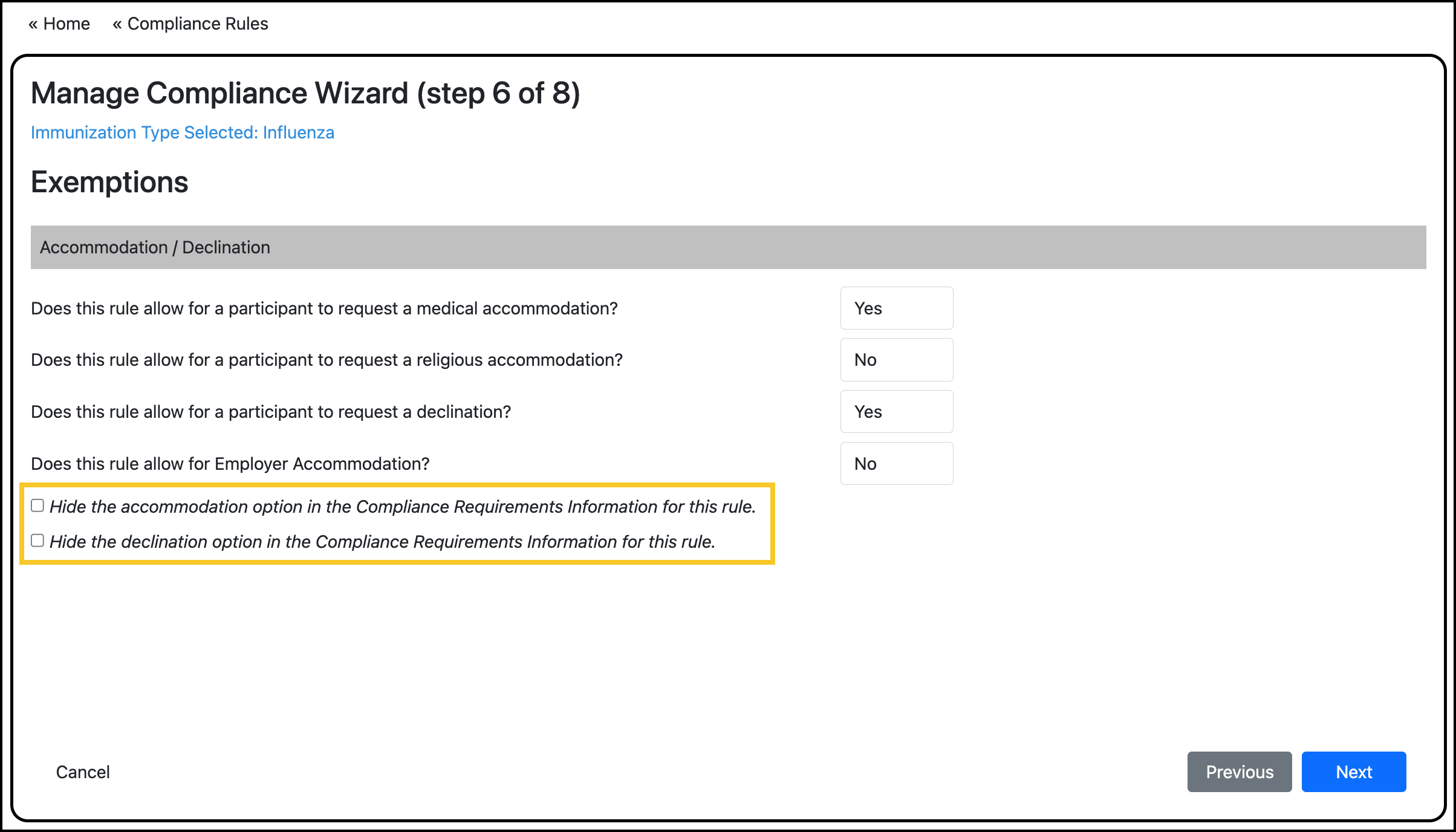
Within the rule builder, you can select whether to hide exemption options from participants. This selection will hide the accommodation/declination options in the info pop-ups. This is optional.
This configuration only displays in the rule wizard if you have selected to accept an exemption type for a rule.
Note: The Employer Accommodation option will never display in the info pop-up.
To enter a description for a rule:
-
Go to Manage Compliance.
-
Click Edit for the rule.
-
Navigate to the Exemptions page in the rule builder.
-
If any exemption options are enabled, the options to hide the exemption type will display below:
-
Select the exemption type you want to hide.
-
Save the rule builder.
Do not trigger compliance reevaluation for users.
Configuration descriptions
Hide the accommodation option in the Compliance Requirements Information for this rule.
When this is checked, the accommodation link is hidden:
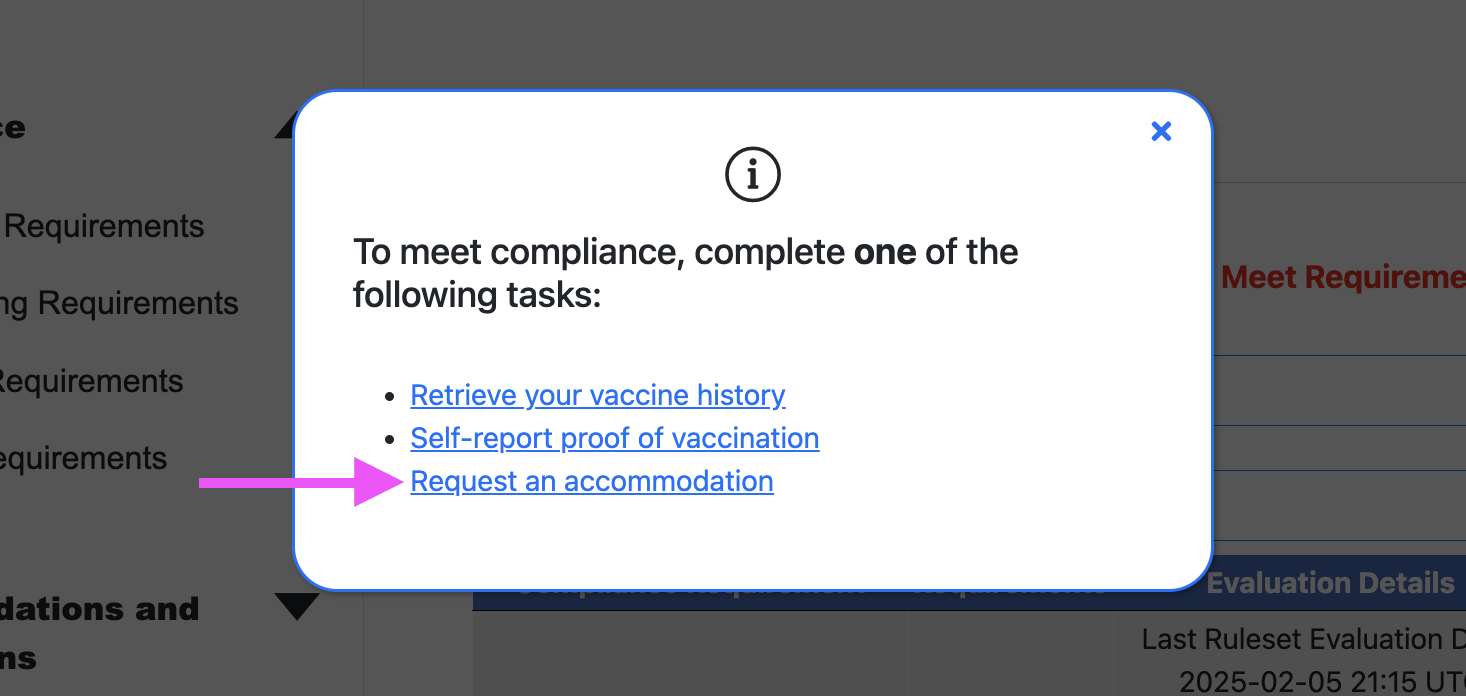
Hide the declination option in the Compliance Requirements Information for this rule.
When this is checked, the declination link is hidden: