.png)
Form compliance rules allow you to require that a participant complete a form in TrackMy.
If you do not see the buttons described here, contact your TrackMy Client Success team to be granted the necessary admin permissions.
Create a Form Rule
-
In your admin/clinical portal, go to Manage Compliance:
-
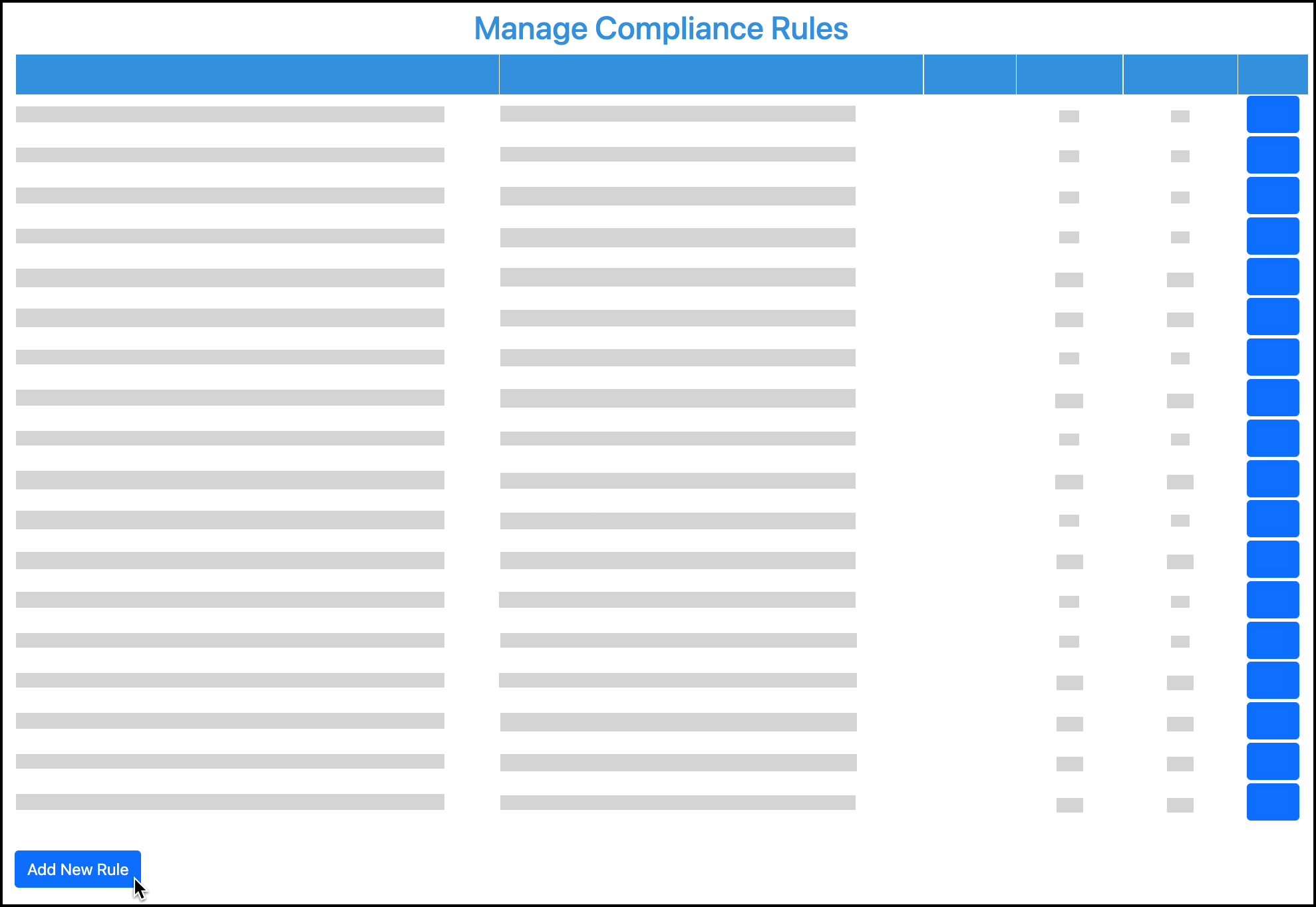
At the bottom of the Manage Compliance Rules page, click Add New Rule:
-
For the compliance rule type, select Form.
-
Select the form to which the rule will apply.
You can create multiple rules for a single form. This flexibility allows you to create different requirements for different user groups for the same form. -
Enter the ruleset name.
-
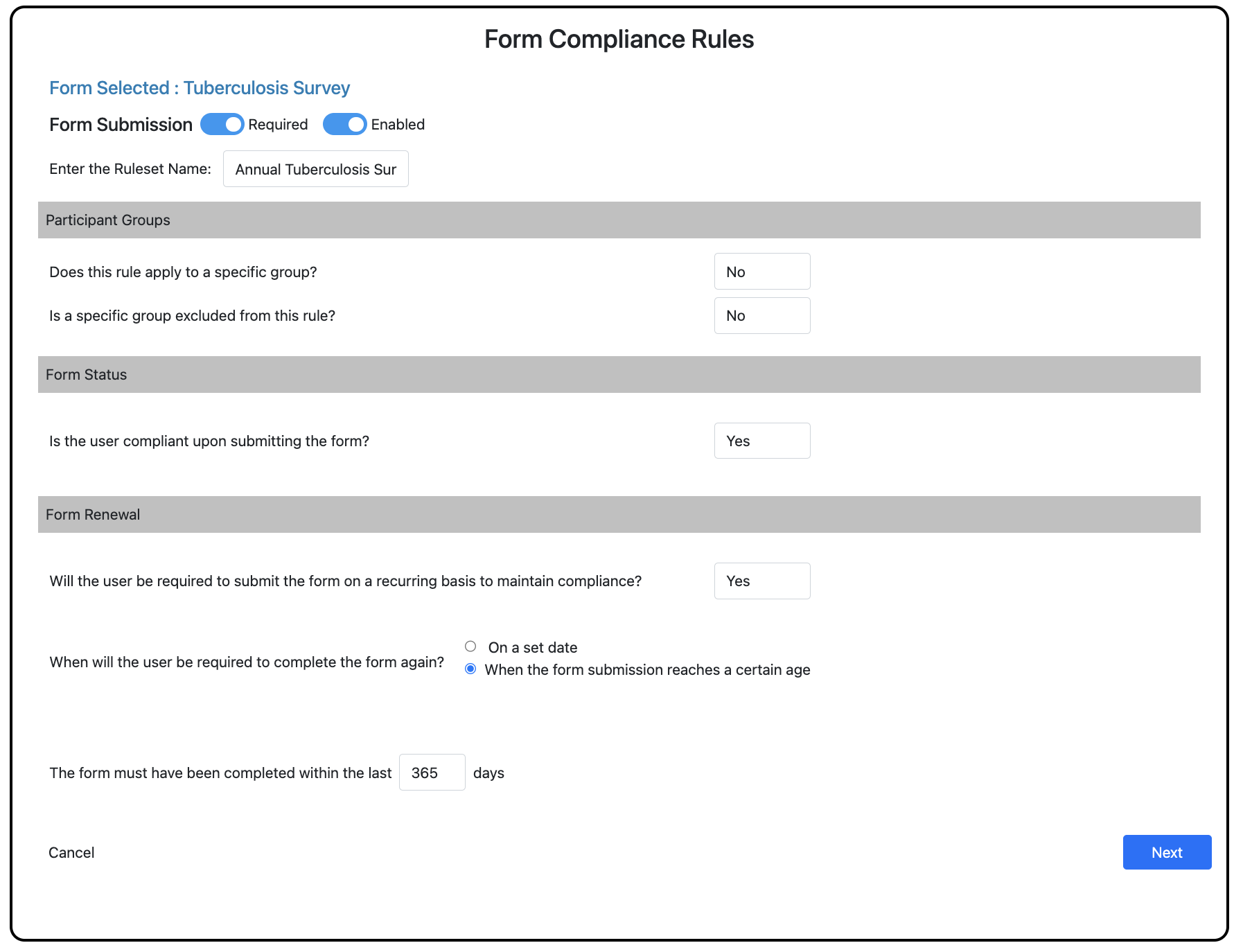
Select configurations.
The following describes each configuration option in the Form Compliance Rule Wizard.
Participant Groups
Does this rule apply to a specific group?
No: The compliance requirement is not limited to a user group and will apply to all users.
Yes: The compliance requirement will only apply to users in the select user group(s).
-
You must select at least one user group to which the rule applies.
Form Status
Is the user compliant upon submitting the form?
No: Form submissions must be updated to the Completed status for the user to meet compliance.
Yes: Users can meet compliance requirements upon submitting the form, even if the form is Pending.
Form Renewal
Will the user be required to submit the form on a recurring basis to maintain compliance?
No: The user will not have to submit a new form submission again to maintain compliance.
Yes:
When will the user be required to complete the form again?
-
On a set date - All users will no longer meet compliance on a set date (i.e., Jan 31 every year or The 1st day of every month), and will have to submit a new form submission after that date to regain compliance.
Use case: All Tuberculosis Surveys expire on January 31st every year, and users must submit a new Tuberculosis Survey after January 31st to regain compliance. This automates the client’s annual Tuberculosis Survey drive. -
When the form submission reaches a certain age - Each user will no longer meet compliance once their form submission is older than the accepted age.
Use case: Tuberculosis Surveys expire 365 days after submission. The user must resubmit the Tuberculosis Survey to maintain compliance. The exact timing varies for each user because each submitted at a different time.
Edit a Form Rule
-
In your admin/clinical portal, go to Manage Compliance:
-
For the rule, click Edit.
-
On the rule summary page, click Previous to navigate through the wizard and update any settings.
-
Return to the rule summary page and Save.
Triggering events for Form Compliance Rules
The only way for a participant to become compliant is to submit the required form. There are no accommodations, declinations, or other alternatives for the user to submit.
The following events will trigger a form to be evaluated for compliance:
-
Form is submitted by participant
-
Other status change
-
Admin updates form status after review
-
Completed status - Meets compliance
-
Declined status - Does not meet compliance only if the Completed status is required
-
-
Form submission age hits expiration limit - goes to Expired status - Does not meet compliance only if the Completed status is required
-
Form status and compliance
Due to the ability to set a default status for a form submission within the Form Builder, and the ability to set the required status in the Rule Wizard, it is important to understand how the two settings work together.
When a user will immediately be compliant upon submitting the form
-
Form default status is set to Pending + Rule Wizard is set to accept Pending status
-
Form default status is set to Completed + Rule Wizard is set to require Completed status
-
Form default status is set to Completed + Rule Wizard is set to accept Pending status
When a user will remain not compliant until after form review
-
Form default status is set to Pending + Rule Wizard is set to require Completed status